YouTube Premium is YouTube's paid membership. With it, you can watch videos without ads, keep audio playing after you lock your phone, download videos to watch offline, and use YouTube Music Premium, which comes included. If you often watch tutorials, listen to long interviews or use YouTube for music, these benefits change how you use the app every day.
Premium is different from the "Join" button under a creator's channel. A channel membership mainly supports that creator and gives you the perks or members-only content they offer. Premium improves how you watch and listen across YouTube, and it does not unlock members-only videos on every channel.
Whether it's worth paying for comes down to your habits: how often ads interrupt what you watch, whether you want audio to keep going when you switch apps, and whether you need videos for times when you're offline. Once you know which of these features you would actually use, comparing ways to subscribe and their prices gets much easier.
Jump to: Ad-free viewing · Background play · Offline downloads · Music benefits · Other useful features · Premium vs. Music vs. Lite · Is it worth it? · Join a family group
Watch longer videos without ad interruptions
When you're watching an interview, following a tutorial or watching a documentary on your TV, an ad costs you more than a few seconds of waiting. A tutorial reaches an important step and playback stops; when it comes back, you may have to scrub back to find where you were. An interview cut off mid-sentence is also harder to get back into.
With Premium, you can watch videos without the ads YouTube normally shows before and during playback. If you tend to watch several videos in a row, you no longer have to wait out or skip those ads between videos, so tutorials and interviews are easier to follow. Creator sponsorships and some other promotions are separate, as explained below.
It isn't limited to your phone. Where the service and your devices are supported, signing in with your Premium account on a computer browser, a compatible smart TV or a game console gives you ad-free viewing there too. If you learn on your laptop during the day and switch to the TV at night, you don't need a second membership for the other screen.
Ad-free does not mean every promotion disappears. Sponsor segments that creators record into their own videos can still appear. Premium deals with platform ads that interrupt playback. It doesn't re-edit the video itself, and it doesn't mean paid movies or live sports are part of the membership.
Keep listening when you switch apps or lock your screen
A lot of YouTube works fine as audio: long interviews, lectures and talk-heavy shows don't need you to watch the screen the whole time. Background play lets you switch to another app on your phone, or turn the screen off, and keep listening to supported content.
Say you hear an unfamiliar term and leave the app to look it up: the show keeps playing. On a walk or a commute, you don't need to keep the screen on just to hear the audio. A half-hour interview you would normally sit down to watch becomes something you can finish while doing chores. When a chart or an on-screen step needs a closer look, switch back to the video.
After you subscribe, open Settings in the YouTube mobile app, find Background play under Background and downloads, and choose Always on, Off, or Headphones or external speakers. If you usually listen to long videos with earbuds, the last option is worth considering; if you want audio to keep playing after you lock your phone, choose Always on. Menu names may differ slightly between app versions.
Background play and picture-in-picture are not the same thing. The first keeps the audio going; the second keeps a small video window on top of other apps. If you only want to listen, you don't need a floating window open. Background play also doesn't work in every player. The YouTube Shorts player, for example, doesn't support it.
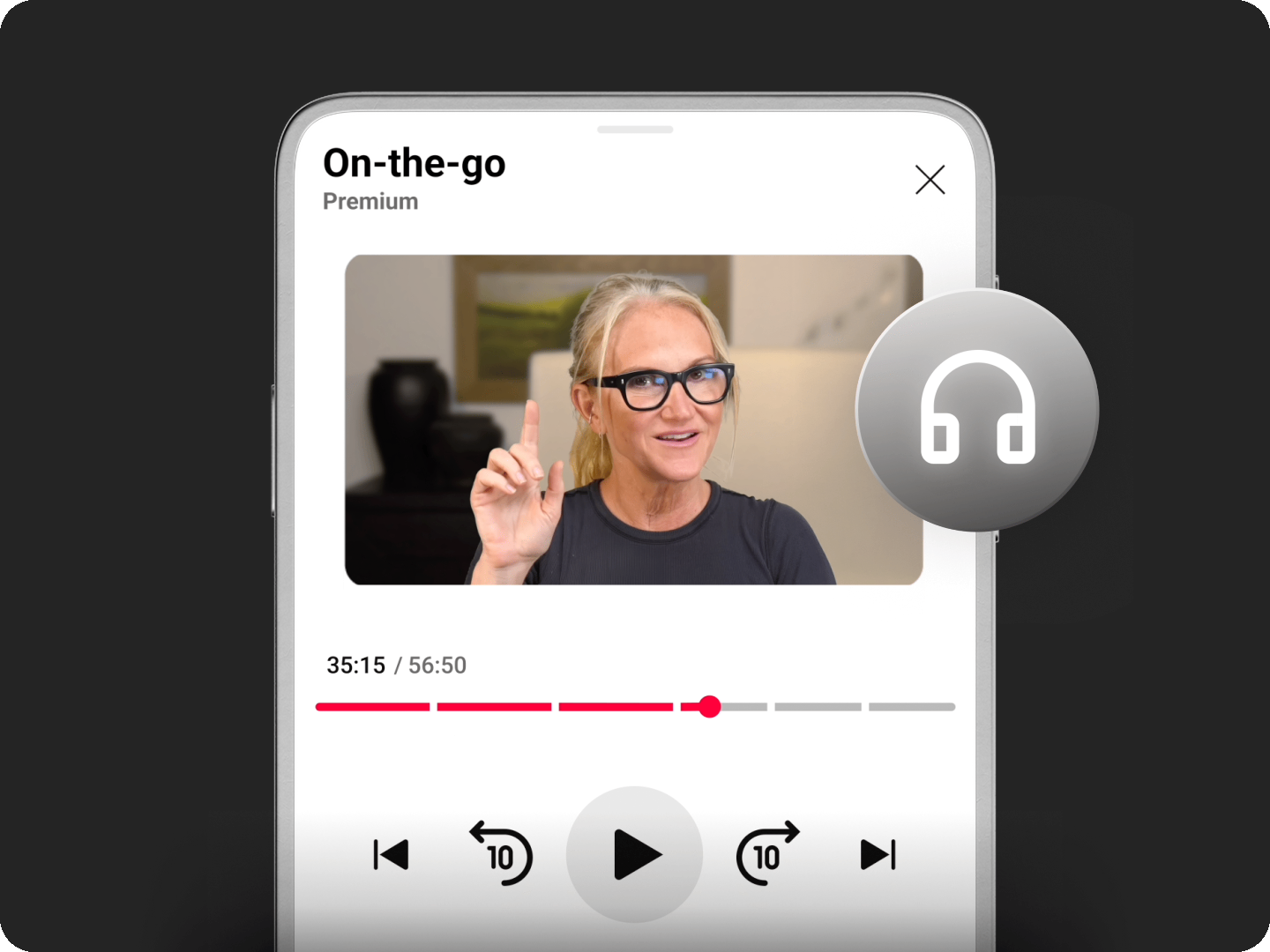
YouTube's official background listening demo (2026); not an EzSub account test or a settings screenshot.
Download ahead, and have something to watch without a connection
Before a flight or a long trip, or before heading somewhere with unreliable internet, you can save videos that allow downloading to your device and watch them offline in the YouTube app.
On Android, for example, sign in to your Premium account, open the video you want and tap Download below it. When it finishes, you'll find it under Downloads in your library. Before you leave, open your downloads once to check that everything has actually finished. If you only tapped Download and the file never completed, you may still be unable to watch it on the road.
Download quality is also worth choosing by situation. If you're listening to an interview on your phone, you probably don't need the highest quality. If you need to rewatch the text and details in a tutorial, pick a sharper version. Higher quality usually takes more storage and data, which matters when you're saving several long videos.
If you often forget to pick videos in advance, consider Smart Downloads. When it's on, YouTube adds some recommended videos to your downloads based on what you've watched. It's handy for having something ready on the go, but it won't necessarily save the exact episode you had in mind. For a specific course or show, download it yourself.
Offline downloads aren't permanent video files you can export, either. Watching them depends on YouTube's download feature and your account, and your device has to go online from time to time so YouTube can check that the content is still available. For ordinary trips and commutes, the practical habit is to reconnect and refresh your downloads before you leave, rather than treating them as a long-term video backup.
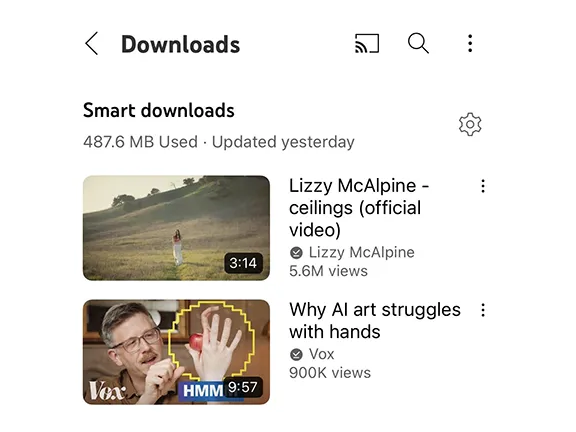
Part of YouTube's official Smart Downloads screen (2023 example); actual menus depend on your app version.
YouTube Music Premium is included
YouTube Premium includes YouTube Music Premium, so you don't need to buy a separate Music membership. It's worth counting this when you compare subscription costs: you get the video benefits, plus ad-free listening, background play and offline music downloads in YouTube Music.
Part of YouTube Music's appeal is the music beyond official releases, such as remixes, covers and live performances. If you like finding different versions of songs on YouTube, put the tracks you play most into a playlist and see whether the music app covers what you like. Exactly which versions you can play still depends on the track and your region.
To use it, sign in to YouTube Music with the same Google account that has Premium. When you just want to listen, you can switch to audio playback instead of keeping the video on screen, and you can save music for offline listening before you head out. One subscription then covers both watching videos and everyday listening.
If you already use another music service, you don't have to switch just because Premium includes Music. Start with a batch of songs you listen to often and check whether you can find them, whether the playlists suit you and whether your usual devices play them easily. If all of that works, then think about dropping the other subscription. There's no need to change your habits just to get more use out of the membership.
Keep the direction of the plans straight as well: full YouTube Premium includes Music Premium, but buying Music Premium on its own doesn't give you full Premium benefits on regular YouTube videos. If you only listen to music, you'll be comparing different plans from someone who also watches videos.
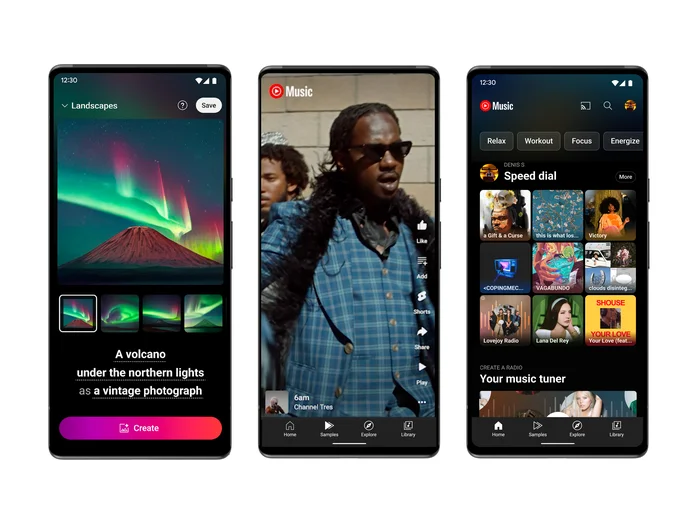
Official YouTube Music interface example (2023); it shows the app experience and does not mean every feature shown is Premium-only.
Beyond the four core benefits, which features are worth using?
Ad-free viewing, background play, downloads and music are the main reasons to subscribe. If you watch long videos often, the queue and video quality features are also worth knowing. They may not justify paying on their own, but they make a membership you already have more useful.
1080p Premium: a higher bitrate, not 4K
Some videos show a 1080p Premium option in the quality menu. It has the same resolution as regular 1080p; the difference is a higher bitrate, which keeps more detail in the picture.
It doesn't add a 4K option to every video, and it doesn't turn a low-resolution upload into HD. Only eligible videos offer it, and how much difference you see also depends on the original video, your screen and your connection. Check the quality settings in the player to see whether it's available, rather than expecting every video to look noticeably sharper once you subscribe.
Queue on mobile: line up what to watch next
When you finish one tutorial and want the next, or want to listen to several interviews in a row, you can add videos to a queue and set the order they play in, instead of going back to the search results after each one.
The queue on phones and tablets is a Premium feature. The desktop site has a queue too, so it isn't accurate to say queues are members-only on every device. Use the queue for what you want to watch next; for a set of videos you'll keep coming back to, save them as a playlist instead.
What's available depends on your device and the content. For the full details, see YouTube's official list of Premium benefits. When you're choosing a membership, focus on the features you'll use often and treat the rest as extras.
Premium, Music Premium and Lite: how are they different?
If you only look at names and prices, it's easy to treat these memberships as the same product. Working out what each one is for, and then comparing prices, helps more than simply asking which one is cheapest.
YouTube Premium is for people who want both video and music benefits, and it's the plan this article has described so far. If you watch regular videos, also listen to music, play shows with your screen locked or use YouTube offline, start by comparing Premium plans.
YouTube Music Premium is mainly for music. If you only want to listen in YouTube Music and have no need to pay for an ad-free experience or extra features on regular YouTube videos, you can compare music plans on their own instead of treating full Premium as the only choice.
Premium Lite offers ad-free viewing, background play and downloads for most non-music videos, according to YouTube's current help page. It doesn't include YouTube Music Premium or extras such as mobile queuing and 1080p Premium. It's an option to compare if you mainly watch non-music videos and don't need those additional benefits. See how Premium Lite differs
If you mostly listen to songs, watch music videos, or use video and music together, whether Music benefits are included matters a lot. If you mainly watch non-music videos, compare the plans available where you live. Don't skip over what each plan actually includes just because they all have "Premium" in the name.
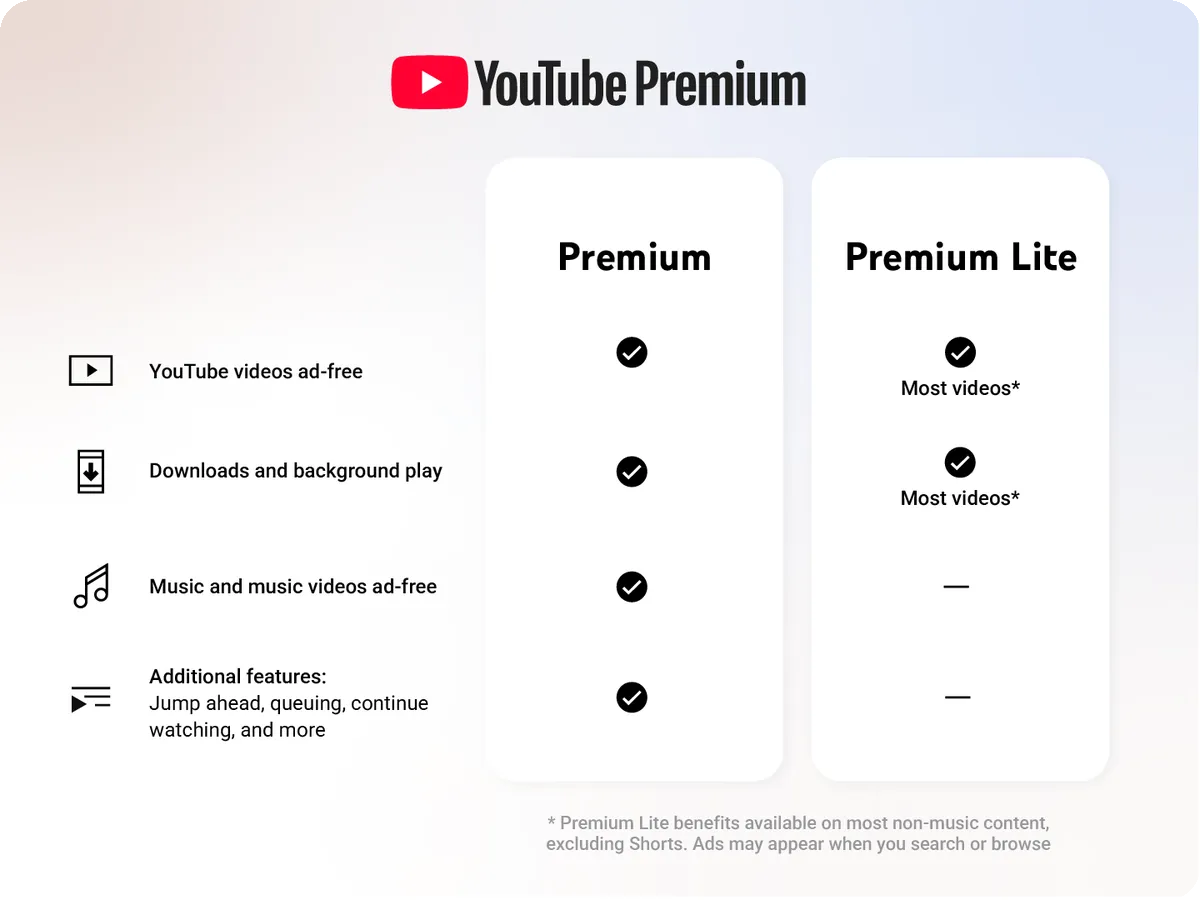
Image source: official YouTube Blog (2026). Lite's background play and downloads mainly apply to non-music content; the standalone Music plan is covered in the text above. YouTube and related marks are trademarks of Google LLC; this article is not endorsed by Google.
Which viewing habits make YouTube Premium a good fit?
If you watch long videos often, start by asking whether ad-free viewing solves the interruptions you run into most. If you use YouTube as a source of audio shows, background play will be more useful. If you travel or need to watch offline, you're more likely to use downloads.
To decide, think about the last time something got in your way. Was a video cut off halfway by an ad? Did the audio stop when you left the app to reply to a message? Or did you realize just before heading out that you had nothing downloaded? Paying to fix a problem that happens often is an easier decision than paying for an extra feature you rarely touch.
If you use YouTube for both videos and music, count the two together. Comparing only "how much it costs to remove ads" can overlook the Music benefits that come with it. But if you're happy with another music service, there's no reason to count it as money you'll definitely save.
We suggest choosing based on how you actually use YouTube. If you only open a few videos now and then, don't mind ads, and have no need for background play or offline viewing, the free version still works fine. If you already use YouTube a lot and want fewer interruptions and easier listening, Premium makes more sense.
Join a YouTube Premium family group through EzSub
Once you've decided Premium's features suit you, you can compare ways to subscribe. If you're comparing subscription costs, take a look at our YouTube Premium family group options and check the current prices and durations before you choose.
At EzSub, we offer invitations to join a YouTube Premium family group for 3 months or 12 months. Each member uses their own Google account rather than sharing a login and password, so you keep your YouTube subscriptions, saved videos and watch history with your existing account.
When you order, enter the Google/YouTube email address you want to add, and we'll send the family invitation to that address. When it arrives, sign in to that Google account, follow the steps on the invitation page to join, then open YouTube and YouTube Music with the same account to check your membership benefits. You don't need to give us your Google password or any verification code during this process.
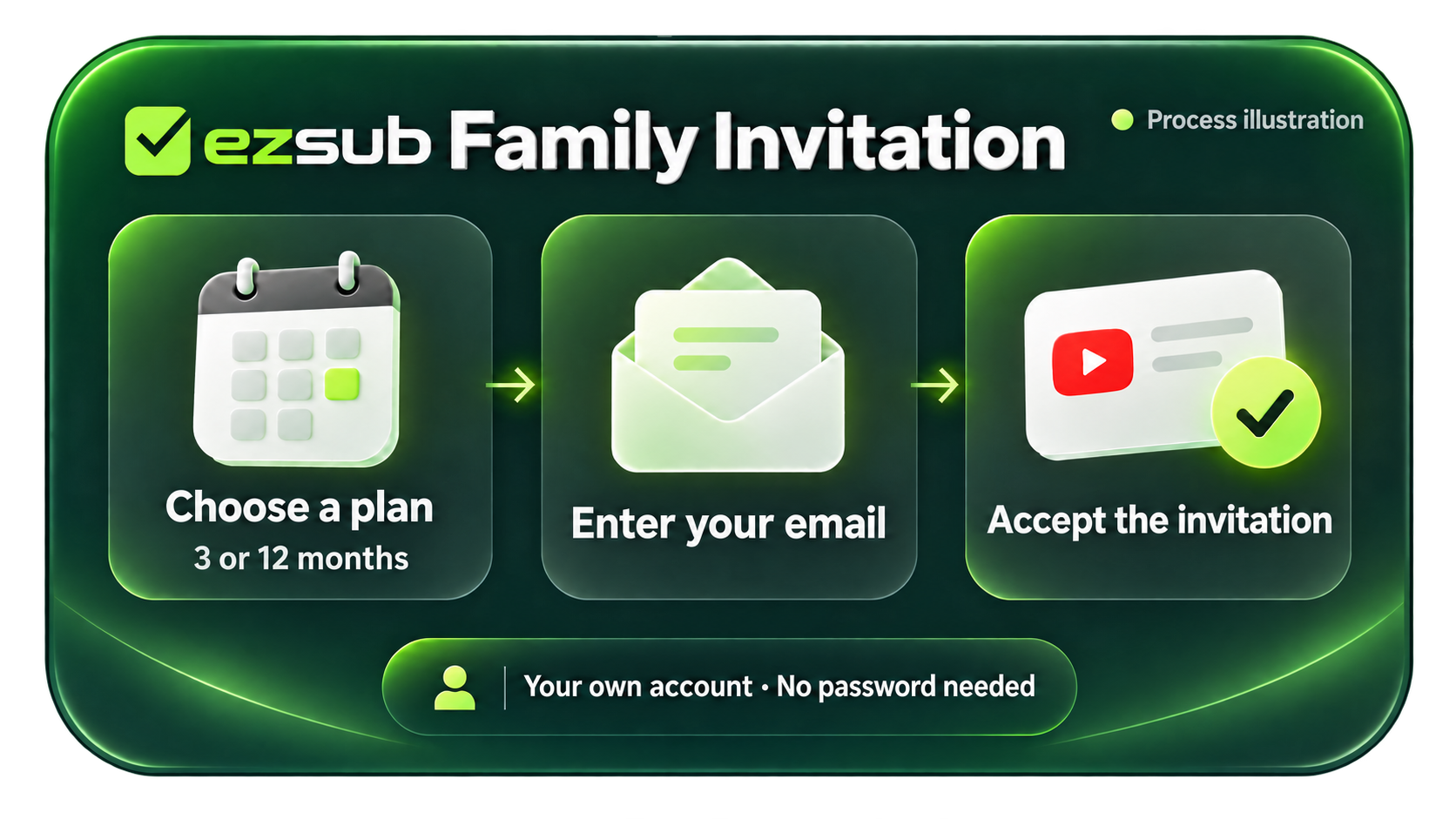
Illustration of the EzSub family invitation steps; not an order, invitation email or delivery screenshot.
Family invitations are for users who meet YouTube's requirements on region, living in the same household and account eligibility, so please check that you can join before you buy. Current plan prices and conditions are shown on the product page.
When choosing, look at the total price together with how long the plan lasts, not just the amount you pay at once. If you plan to use it long term, the 12-month plan is worth a look; if you'd like to try it for a while first, consider the 3-month plan. Weigh the actual price, the duration and the features you'll really use, then pick the option that fits your budget.